CS2 Replays
The Replays module generates clips that can be displayed between rounds or at the end of a game. Please keep in mind that you need OBS or vMix for proper Replays configuration.
Requirements:
- Professional Plan, or Enterprise Plan with at least 2 seats
- Two PCs in the same network, with synchronized system clocks
- LHM installed on both PCs
- Access to 2 CSTV servers. One should be ~7s delayed relative to the other
- OBS / vMix
Make sure the system clock on both devices shows exactly the same time down to a second. LHM Replays tab reports Clock diff, and if it's large, it's the best to synchronize the clocks in the operating systems and reconnect the computers. You can synchronize the time in Time & Language > Date & Time settings tab.

LHM might ask you about letting access to the network for lhm_ndi_finder.exe and lhm_replay_feed.exe. Allow access for both.
If you can't see appropriate NDI source, make sure vMixDesktopCapture is running on the delayed PC, both computers are on the same local networks and there isn't any firewall running that could restrict the access.
You need to have audio on your delayed PC unmuted for LHM Replays to work correctly and prepare clips.
LHM Replays module has two main modes: vMix Instant Replay and LHM Replay Feed (Beta)
vMix Instant Replay (vMix only)
When using this option, LHM uses vMix's Instant Replay option to record kills and replay them, without creating a separate video stream.
Delayed PC
- Download: https://cdn.vmix.com/download/vMixDesktopCaptureNDI.zip, extract it (ex to Desktop) and run vMixDesktopCapture.exe
- Start LHM.
- Connect to the delayed CSTV
- (Optionally) Open Replay HUD (ex CS2 Ultra HUD in Replay Mode)
Main PC
-
Open vMix
-
Add NDI Source, which corresponds to the view from the Delayed PC
-
Add Instant Replay Source
-
Start LHM
-
Go to Replays tab
-
See if you can find Delayed PC in the dropdown in the Computer ID section. If not, find the Computer ID from the Delayed PC, put it in here, and click Connect
-
On the Delayed PC there should appear permission modal. Click Accept
-
Back on the Main PC, go to vMix -> Settings -> Web Controller and copy the full URL
-
In the LHM Replays tab, put that URL in the Mixer section and click Setup.
-
LHM will show step by step configuration instruction of the vMix.
Once the game starts, LHM should automatically clip and play replays using vMix Instant Replay.
Replay Feed (OBS, vMix, others...)
When using this option, LHM Replay Feed creates a new NDI stream, first recording all the kills itself, before playing it through the stream. With OBS and vMix, LHM then will, on its own, automatically switch scenes to the replay ones at the end of a round, before returning to the previous one.
Delayed PC
- Download and install: http://ndi.link/NDIRedistV6
- Download: https://cdn.vmix.com/download/vMixDesktopCaptureNDI.zip, extract it (ex to Desktop) and run vMixDesktopCapture.exe.
- Start LHM.
- Connect to the delayed CSTV.
- (Optionally) Open Replay HUD (ex CS2 Ultra HUD in Replay Mode).
Main PC
- Close OBS if opened.
- Open LHM. It might prompt you to install the NDI plugin for OBS. Allow it if you want to use OBS.
- Connect to non-delayed CSTV.
- Open OBS if you want to use OBS as the mixer.
- In LHM, go to the Replays tab. In the Computer ID section input the PC Code from the Delayed PC. Click Connect.
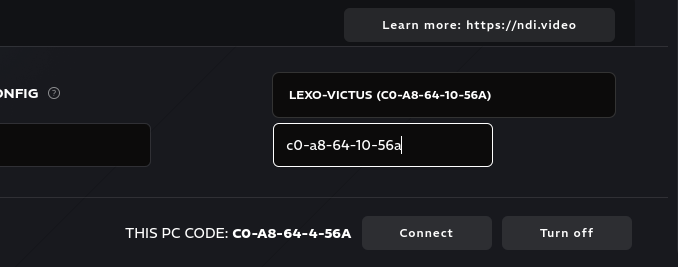
- On the Delayed PC's LHM there should be a prompt for access. Click Accept.
- On the Main PC's LHM, choose
Replay Feed (Beta). - Choose the delayed NDI source.
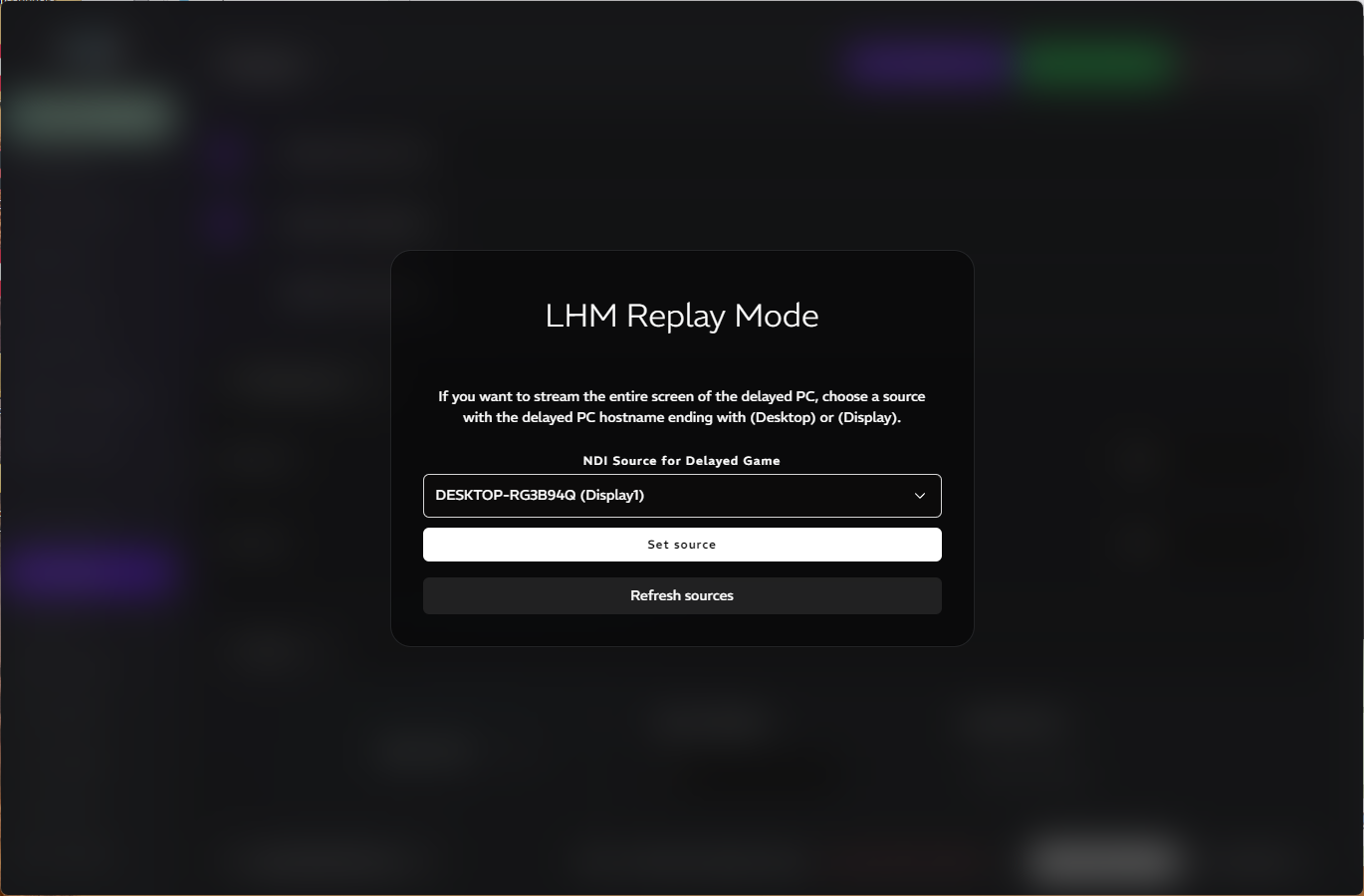
If you want to stream the entire screen of the delayed PC, choose a source with the delayed PC hostname ending with (Desktop) or (Display). You can also select other sources, e.g. just the game window.
- Choose which mixer should be used for Replay Feed output:
- OBS
- vMix
- Enter the mixer connection details directly in the modal flow.
Replay Feed + OBS
- In OBS go to Tools > WebSocket Server Settings.
- Make sure
Enable WebSocket Serveris on. - Click
Show Connect Info, and copy the IP, Port and Password to LHM. - Click
Connect & Setupin LHM.
If LHM Replay Input appears in OBS but no source is selected automatically, open its properties and choose the source ending with LHM Replay Feed.
Replay Feed won't show any image until Replays are playing recorded kills from a game.
Replay Feed + vMix
- In vMix go to Settings > Web Controller and copy the full URL details from there.
- Enter the connection details in LHM.
- Click
Connect & Setup.
You can also choose Configure later and complete OBS or vMix setup later from the Replays tab.
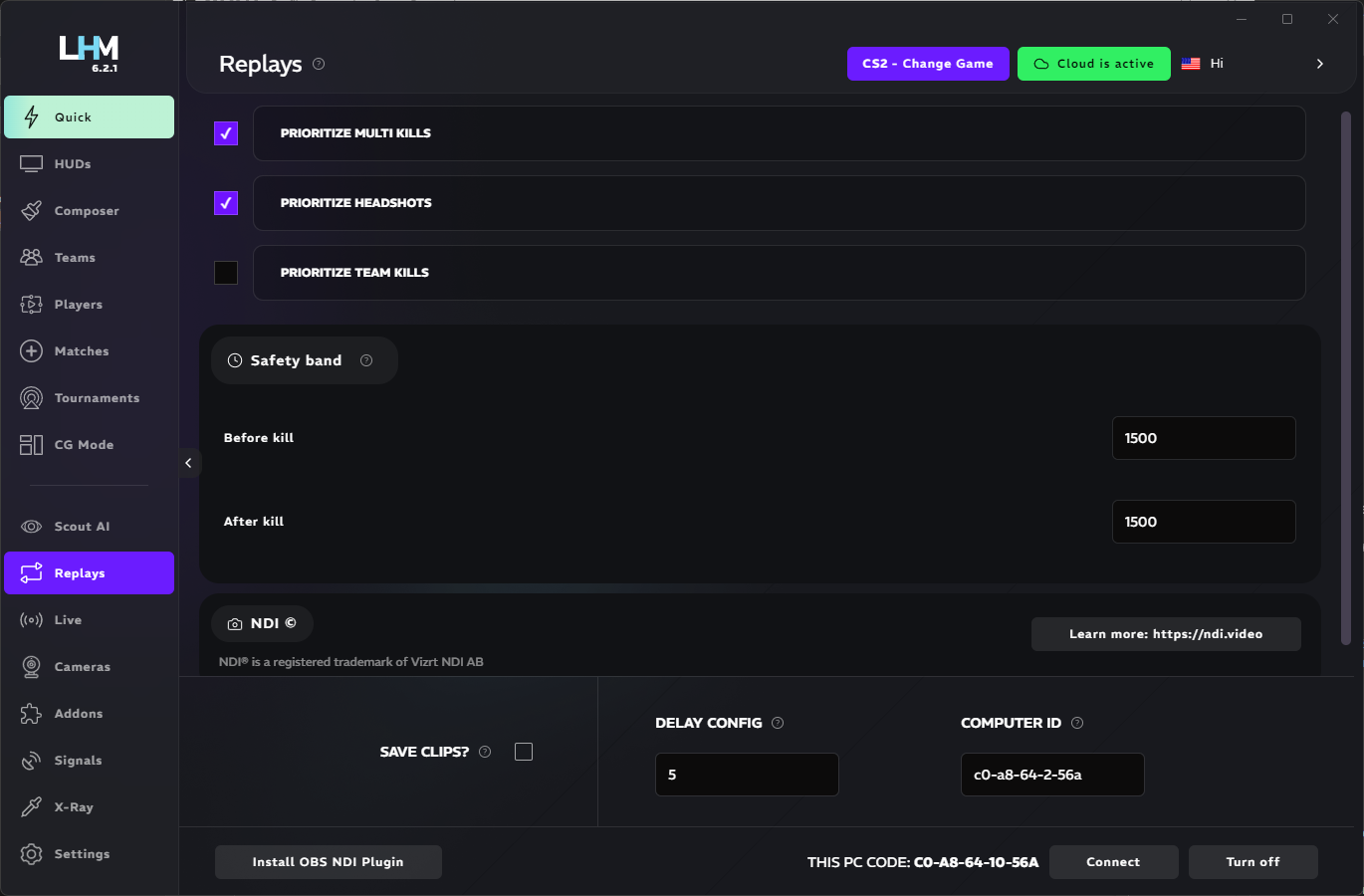
Replays settings in LHM
Priority
You can enable or disable and reorder with drag and drop these priority rules:
- Multikills
- Headshots
- Teamkills
Based on the rules, LHM will be prioritizing different clips to replay.
Safeband
You can set up how much time before a kill and after should LHM record, to make sure it'll be able to capture the moment in case of a delay between the computers.
Save Clips
This option tells LHM to keep generated replay clips instead of deleting them after use. This option is available only for vMix Instant Replay.
Delay config
Delay config defines how delayed the replay/delayed observer is compared to the main observer in configuration.